Cisco Contact Center Status Indicator
Cisco Contact Center Status Indicator
The Cisco Contact Center Status Indicator gives agents a clear and reliable view of their current Cisco agent status directly in Salesforce.
It is provided as a Lightning Web Component (LWC) and can be added to the Utility Bar as a Utility Item.
This component is useful because the status shown in Salesforce Omni-Channel does not always match the agent's actual status in Cisco's Webex Contact Center or Unified Contact Center. With the Status Indicator, agents can always check their real Cisco status without leaving Salesforce.
Benefits
Using the Status Indicator provides several advantages:
Improved visibility
Agents can immediately see their actual Cisco Contact Center state in Salesforce.More accurate status information
The component helps avoid confusion when Omni-Channel shows a different presence than Cisco Contact Center. Mapping every Cisco Contact Center state to a Salesforce Omni Presence can be very time-consuming / tedious which is why not all states might be mapped 1:1.Better awareness of current activity
Agents can quickly see that they are in Wrap-Up.State duration tracking
A timer shows how long the agent has been in the current state, making status changes easier to understand.Helpful login feedback
If the agent is not logged in, the component can display guidance to help identify login issues.Additional operational details
The component can also show the team and extension/dial number the agent is currently logged in with. This also improves visibility and can help with troubleshooting.
Functionality
The Status Indicator is designed to give agents important Contact Center information at a glance. Less information is shown in the Utility Bar, and if the agent wants to see more, they can open the full component.
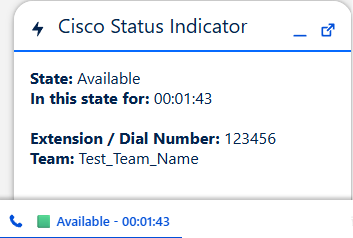
Current agent state
The component shows the agent's current Cisco Contact Center state, such as:
- Ready
- Busy
- Logout
- Other configured states
Duration of the time spent in current state
A timer shows how long the agent has been in the current state. This helps agents understand whether their status was updated recently or has been active for some time.
The duration is shown in this format: hh:mm:ss.
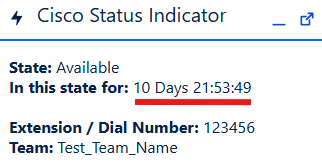
The duration in the Utility Bar is capped at 24 h due to limited space.
If the elapsed time is longer, it is displayed as +24:00:00.

In the open Utility Item (expanded view), the agent can see the full duration in X days hh:mm:ss.
Utility Bar status icon
The component also provides a visual indicator in the Utility Bar:
- 🟩 Green for Ready
- 🟨 Orange for Not Ready, Active & Wrap-Up
- 🟥 Red for all other states, such as Logout / Offline
This makes the current state visible even when the Utility Item is collapsed.
Utility Bar Icon
As soon as the agent is logged in, the standard phone icon is displayed:

When the agent is in a call, one of these icons may be shown instead:
Incoming Call

Phone icon with an arrow pointing to the phone.Outgoing Call

Phone icon with an arrow pointing away from the phone.
Login placeholder and guidance
If the agent is not yet logged in, the component shows a placeholder with login guidance.
The placeholder helps the agent identify login issues and provides the relevant startup instructions.
Webex Contact Center login placeholder

Unified Contact Center login placeholder

Team and Extension/Dial Number information
The component can display the agent's currently selected:
- Team
- Extension/Dial Number

This helps agents confirm that they are connected with the correct configuration.
What Information can be shown where
In the Utility Bar (collapsed view), only compact information is shown:
- (Icon)
- (Visual aid for Current agent state)
- (Agent Status)
- (Duration since last State-change (if enabled in settings))
All the Information described in the Functionality section is shown in the open Utility Item (Open LWC).
For all available settings, see Settings.
Setup
Follow these steps to add the Status Indicator to the Salesforce Utility Bar.
- Open Setup in Salesforce.
- Go to App Manager.
- Find the Lightning app used by your agents.
- Click Edit for that app.
- Open Utility Items (Desktop Only).
- Click Add Utility Item.
- Select Cisco Status Indicator (LWC Utility Item).
- Select Start automatically. If this is not selected, the component will not work unless it is opened manually after each reload.\
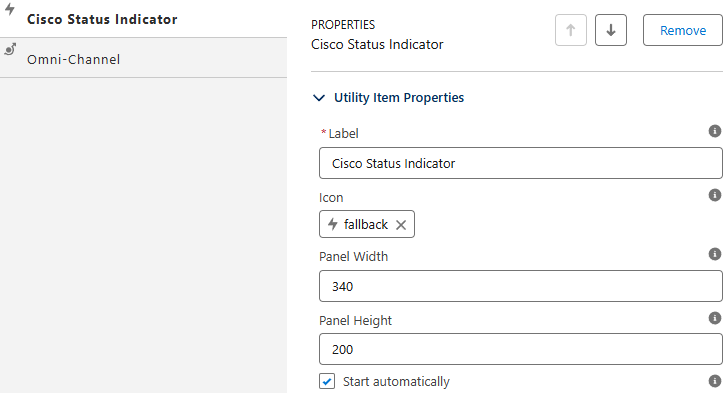
- (Optional) Set a different label, for example: Agent Status. This is shown only while the agent is not logged in.
- (Optional) Set an icon. This is shown only while the agent is not logged in.
- (Optional) Set panel width and panel height.
- (Optional) Customize the component using Settings.
- Click Save.
Settings
The following options can be configured:
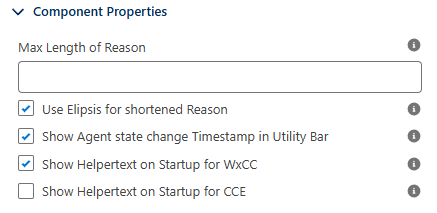
For the collapsed version (Utility Bar)
Max Length of Reason (
maxReasonLength)- Allowed Values: Integer
>= 0(empty value allowed) - Default: No value (not set)
- Behavior:
- Not set: full reason is shown (no truncation)
0: reason is hidden> 0: reason is shortend to the configured length
- Allowed Values: Integer
Use Ellipsis for Shortened Reason (
ellipsisForReason)Allowed Values:
true/false(checkbox)Default:
trueBehavior:
- `true`: if reason text is shortend, it gets shortened by 3 characters and `...` is appended
- `false`: shortend text is shown without `...`
- If the reason is not shortened, this setting has no visible effect
Show Agent State Change Timestamp in Utility Bar (
showTimestamp)- Allowed Values:
true/false(checkbox) - Default:
true - Behavior:
true: elapsed time in current state is shown after the reason in the Utility Barfalse: elapsed time is hidden in the Utility Bar
- Allowed Values:
For the open Utility Item (Open LWC)
Show Helper Text on Startup for WxCC (
wxCCStartupText)- Allowed Values:
true/false(checkbox) - Default:
true - Behavior:
true: when not logged in, helper instructions are shown for Webex Contact Center. See Webex Contact Center login placeholder.false: helper instructions are hidden.
- Allowed Values:
Show Helper Text on Startup for CCE (
cCEStartupText)- Allowed Values:
true/false(checkbox) - Default:
false - Behavior:
true: when not logged in, helper instructions are shown for Unified Contact Center. See Unified Contact Center login placeholder.false: helper instructions are hidden.
- Allowed Values: