Upgrade
This chapter outlines the steps required for a product upgrade installation in the Salesforce Salesforce Voice.
Upgrade steps are described here with fewer details because a familiarity with the normal installation procedure is assumed.
Installing the upgrade during your contact center off hours, when all agents are logged out is recommended.
If you change the API name of the Contact Center, make sure to update the Contact Center name in your IVR scripts as well. It is used for the following requests:
Upgrade to version 2.14
This upgrade (or higher) has to be installed in all production orgs until October 15, 2026. Cisco is retiring a Webex Contact Center API on this day on which the connector depends to login the agents.
If you miss the upgrade window, your agents won't be able to login to b+s Connects for Salesforce Voice anymore.
Install the new b+s Connects for Service Cloud Voice 2.14 managed package.
The installation URL is provided directly or on request from Bucher + Suter.
To install the release in a Sandbox environment, replace the "login.salesforce.com" part of the URL with "test.salesforce.com".
Contact Center configuration
If your current Contact Center already contains the
Flagsfield: No new Contact Center.If it does not: Please follow the Contact Center instructions in the chapter containing the 2.11 upgrade.
Ensure the Granular Agent State Control feature is enabled in your Webex Control Hub.
ImportantFor b+s Connects for Salesforce Voice to support this change as well as continue to work, the setting has to be enabled directly after upgrading to 2.14.
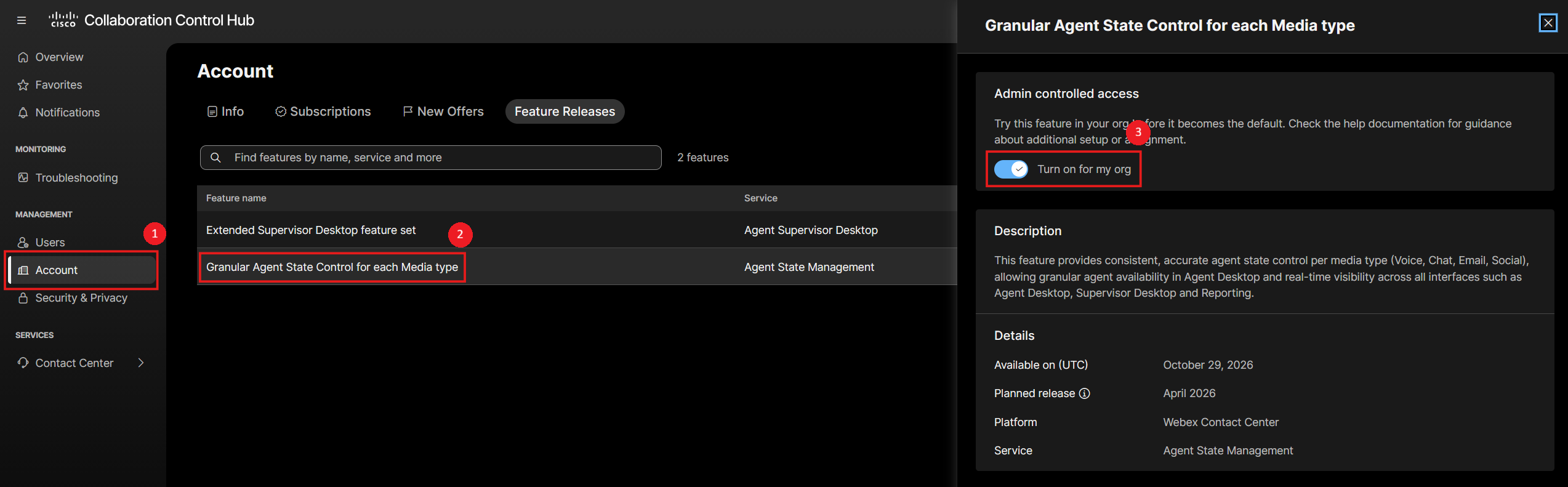
On October 29, Webex will enable it for all organizations.
infoThis is a Webex Contact Center feature.
For more information about the Granular Agent State Control feature, please read the announcement in the What's new for administrators in Webex Contact Center
If you choose to wait until Webex enables it automatically, you can turn off this feature in b+s Connects for Salesforce Voice temporarily by adding
DisableGranularAgentStateinto theFlagsfield of the Contact Center.cautionIf you've added
DisableGranularAgentStateinto theFlagsfield, you have to remove it on October 29. Otherwise b+s Connects for Salesforce Voice will stop working. Your agents won't be able to log in anymore or change their status due to a breaking API change within Webex.infoPrior to upgrading, Have ALL Agents properly log out of the gadget/Webex.
If agents remain logged in or have a cached session, after the upgrade they will see the error
Request failed.If this occurs :
- Log out of the Gadget using “Phone System- Logout”
- Open the Webex Contact Center Agent Desktop in the browser
- Log out of Agent Desktop, click the
Sign Outbutton - Clear browser cache
- Log back into Salesforce and the Gadget.
This should allow the agent’s session to pick up on the new configuration.
Test the new configuration.
If you are using the legacy Cisco Contact Center Status Indicator component that was deployed from an unmanaged package, remove the existing Status Indicator component from the Utility Bar and uninstall the associated unmanaged package. Then, follow the setup guide to add the new Cisco Contact Center Status Indicator component, which is now included in the managed package, to the Utility Bar.
Upgrade to version 2.13
Install the new b+s Connects for Service Cloud Voice 2.13 managed package.
The installation URL is provided directly or on request from Bucher + Suter.
To install the release in a Sandbox environment, replace the "login.salesforce.com" part of the URL with "test.salesforce.com".
Contact Center configuration
No new Contact Center.
Test the new configuration
If you are using the legacy Cisco Contact Center Status Indicator component that was deployed from an unmanaged package, remove the existing Status Indicator component from the Utility Bar and uninstall the associated unmanaged package. Then, follow the setup guide to add the new Cisco Contact Center Status Indicator component, which is now included in the managed package, to the Utility Bar.
Upgrade to version 2.12
Install the new b+s Connects for Salesforce Voice 2.12 managed package.
The installation URL is provided directly or on request from Bucher + Suter.
To install the release in a Sandbox environment, replace the "login.salesforce.com" part of the URL with "test.salesforce.com".
Contact Center configuration
No new Contact Center.
Test the new configuration
Upgrade to version 2.11
Install the new b+s Connects for Salesforce Voice 2.11 managed package.
The installation URL is provided directly or on request from Bucher + Suter.
To install the release in a Sandbox environment, replace the "login.salesforce.com" part of the URL with "test.salesforce.com".
Contact Center configuration
b+s Connects for Salesforce Voice 2.11 introduces new configuration fields in the 'Contact Center' configuration and requires Contact Center V4.
Import new Contact Center V4. See Import the Contact Center for guidance
- Copy the configuration from your existing Contact Center into the new imported V4 Contact Center
To disable the Save-Recording-Link feature, change config key
Save Recording Linktofalse(it is enabled by default)Test the new configuration
Upgrade to version 2.10
Install the new b+s Connects for Salesforce Voice 2.10 managed package.
The installation URL is provided directly or on request from Bucher + Suter.
To install the release in a Sandbox environment, replace the "login.salesforce.com" part of the URL with "test.salesforce.com".
Contact Center configuration
b+s Connects for Salesforce Voice 2.10 introduces new configuration fields in the 'Contact Center' configuration and requires Contact Center V3.
Import new Contact Center V3. See Import the Contact Center for guidance
- Copy the configuration from your existing Contact Center into the new imported V3 Contact Center
To enable WxCC Transcription, change config key
Enable WCCAI TranscriptiontotrueTest the new configuration
Upgrade to version 2.9
Install the new b+s Connects for Salesforce Voice 2.9 managed package.
The installation URL is provided directly or on request from Bucher + Suter.
To install the release in a Sandbox environment, replace the "login.salesforce.com" part of the URL with "test.salesforce.com".
Contact Center configuration
No new Contact Center for WxCC deployments.
Test the new configuration
Upgrade to version 2.8
Install the new b+s Connects for Salesforce Voice 2.8 managed package.
The installation URL is provided directly or on request from Bucher + Suter.
To install the release in a Sandbox environment, replace the "login.salesforce.com" part of the URL with "test.salesforce.com".
Contact Center configuration
b+s Connects for Salesforce Voice 2.8 introduces new configuration fields in the 'Contact Center' configuration and requires Contact Center V2.
Import new Contact Center V2. See Import the Contact Center for guidance
- Copy the configuration from your existing Contact Center into the new imported V1 Contact Center
To enable WebRTC see here
Test the new configuration
Upgrade to version 2.7
Install the new b+s Connects for Salesforce Voice 2.7 managed package.
The installation URL is provided directly or on request from Bucher + Suter.
To install the release in a Sandbox environment, replace the "login.salesforce.com" part of the URL with "test.salesforce.com".
Contact Center configuration
No new Contact Center for WxCC deployments.
Test the new configuration
Upgrade to version 2.6
Install the new b+s Connects for Salesforce Voice 2.6 managed package.
The installation URL is provided directly or on request from Bucher + Suter.
To install the release in a Sandbox environment, replace the "login.salesforce.com" part of the URL with "test.salesforce.com".
Contact Center configuration
No new Contact Center for WxCC deployments.
Test the new configuration
Upgrade to version 2.5
Install the new b+s Connects for Salesforce Voice 2.5 managed package.
The installation URL is provided directly or on request from Bucher + Suter.
To install the release in a Sandbox environment, replace the "login.salesforce.com" part of the URL with "test.salesforce.com".
Contact Center configuration
No new Contact Center for WxCC deployments.
Test the new configuration
Downgrade to an older version of the solution
It is not possible to downgrade an installed package of an application in the Salesforce environment to an earlier version of the package. Either upgrade to a newer version or uninstall the package completely and then reinstall the old version.
To uninstall the new package and reinstall the old package, first consider the following:
- The package cannot be uninstalled if any customizations in the Salesforce environment dependent on the installed package have been made. These customizations will also be removed.
- Users that are assigned to the package and the Contact Center must be reassigned after reinstallation of the old version.
- The Contact Center configuration needs to be reconfigured after reinstallation of the old version.
- All information stored in fields provided by the "Connects for Salesforce Voice" package is lost
An uninstall and new install of the Connects for Salesforce Voice package resets license status to trial. The license must be activated by b+s and must then be reassigned to the users.