External Client App for IVR integration
Configure the External Client App for Cisco CVP (UCCE) / Cisco IP IVR (UCCX) integration
To use Salesforce Voice to its full extent, the Contact Center call flow can be adapted to create the Voice Call record and to execute a Salesforce Omni-Channel flow while the call is on the IVR.
There are two options to connect your Salesforce data with third-party applications. Both Connected Apps and External Client Apps are frameworks to integrate data. External Client Apps are the next generation of connected apps.
Configuration steps
The following configuration steps are required to enable Contact Center Flows and IVRs to connect to Salesforce Voice:
- Create a Permission Set for the Salesforce Voice Integration User
- Clone and modify the Profile Minimum Access - API Only Integrations
- Create a User: Salesforce Voice Integration User
- Create a External Client App
- Assign the Permission Set and the Salesforce Voice Integration User to the External Client App
Permission Set for the Salesforce Voice Integration User
The following Permission Set grants access to Apex classes used by Connects for Salesforce Voice for the integration with Contact Center IVR flows and b+s Connects for Salesforce Voice
The following is an example configuration and describes the minimum required permissions for the Contact Center / IVR integration to work.
From Setup, navigate to Users | Permission Sets
Click on
Newbutton- Enter a Label, for example: IVR Access to Salesforce Voice Apex Classes
- API Name is automatically filled out
- License: None
- Click on
Savebutton
The new Permission Set opens
Navigate to
Apex Class AccessClick on
Editbutton and add the following Apex classes- cnxscv.ServiceRouting
Navigate to
System PermissionsClick on
Editbutton and enabled the following Permissions- Apex REST Services
- API Enabled
Minimum Access - API Only Integrations Profile
This Profile is used to integrate with b+s Connects for Salesforce Voice to create Voice Call records and Execute Omni-Flow from the IVR flow.
The following is an example configuration and describes the minimum required permissions for the Contact Center / IVR integration to work.
This is a clone from the Minimum Access - API Only Integrations profile
From Setup, navigate to Users | Profiles
In the Profiles list, search for the Profile Minimum Access - API Only Integrations
Click on the profile name to open the Minimum Access - API Only Integrations profile
On the Minimum Access - API Only Integrations profile, click the
ClonebuttonEnter a new Profile Name, for example: Salesforce Voice Integration
Click on
SavebuttonThe new Profile opens
Verify that your Minimum Access – API Only Integrations profile has all permissions removed from the profile itself
Navigate to
System PermissionsMake sure the following Permissions are enabled
- API Enabled
- Api Only User
Salesforce Voice Integration User
The following is an example configuration and describes the minimum required permissions for the Contact Center / IVR integration to work.
No Salesforce Salesforce Voice license or b+s Connects for Salesforce Voice license is required for the Salesforce Voice Integration User.
From Setup, navigate to Users | Users
Click on
New Userbutton- Enter First Name, Last Name, and all other mandatory fields
- User License: Salesforce Integration
- Profile: select the profile created in the previous step ("Salesforce Voice Integration profile", clone of Minimum Access - API Only Integrations profile)
Click on
SavebuttonOpen the new User record
Assign the Permission Set License Salesforce API Integration
Assign the Permission Set created before ("IVR Access to Salesforce Voice Apex Classes")
Create and configure a External Client App
The Salesforce Voice API Wrapper requires a External Client App in order to obtain a valid Salesforce Access Token via OAuth 2.
The following section shows the minimal required configuration needed in order to allow the external components to connect to your Salesforce Org.
- From Setup, navigate to Apps | External Client Apps | External Client App Manager
- Click on
New External Client Appbutton
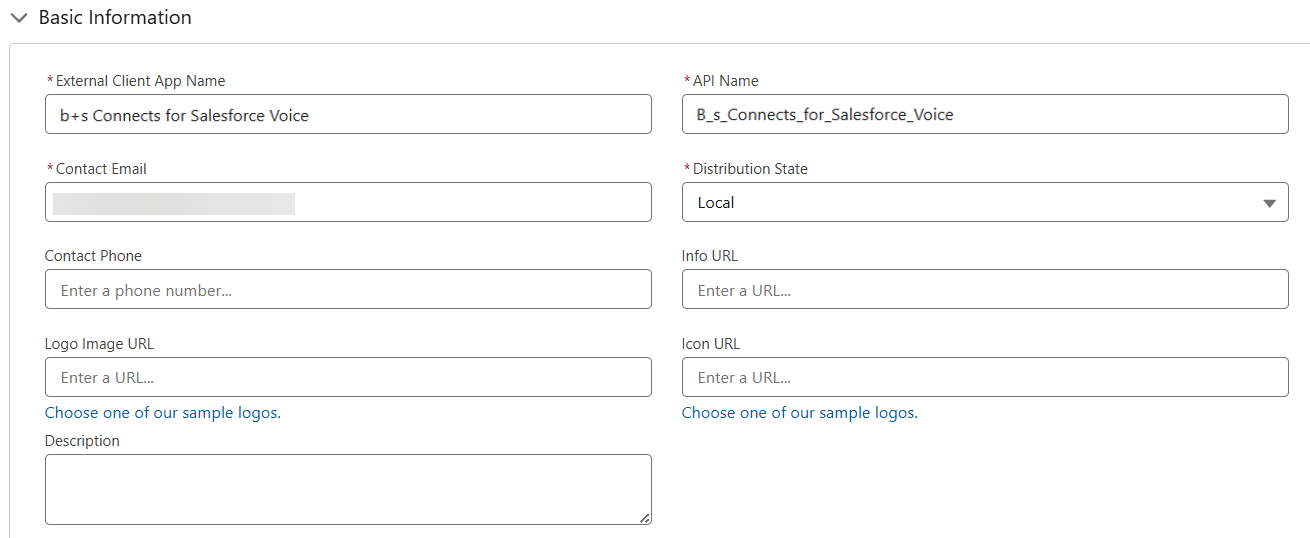
External Client App - Basic Information
- External Client App Name: b+s Connects for Salesforce Voice
- API Name: B_s_Connects_for_Salesforce_Voice
- Contact Email: < your email >
- Distribution State: select Local
External Client App - API (Enable OAuth Settings)
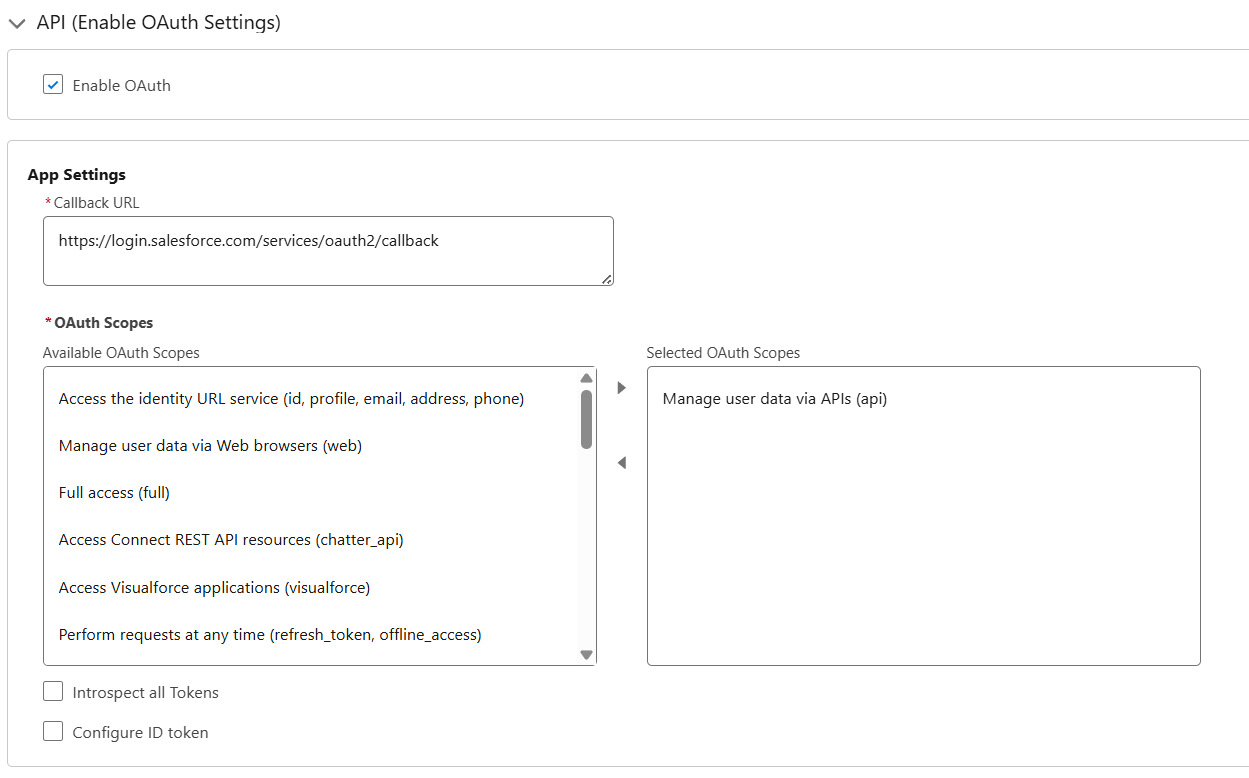
- Select: Enable OAuth
- App Settings
- Callback URL:
https://login.salesforce.com/services/oauth2/callbackas a sample callback URL
- Callback URL:
- OAuth Scopes
- Select OAuth scopes:
- Manage user data via APIs (api)
- Select OAuth scopes:
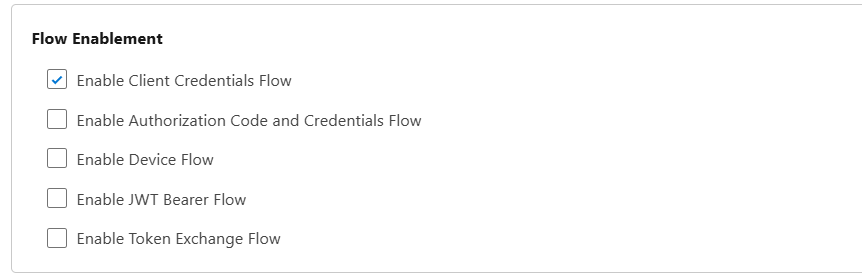
- Flow Enablement
- Select: Enable Client Credentials Flow
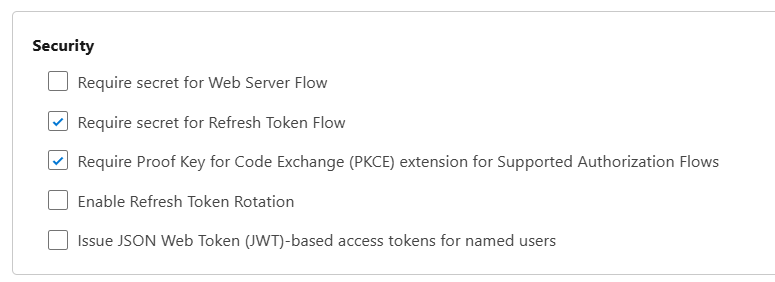
- Security
- Uncheck the Require secret for the Web Server Flow option
Click on
CreatebuttonChange to Tab
Policies- Click on
Editbutton
- Click on
Policies - OAuth Policies
- Plugin Policies
- Permitted Users: select Admin approved users are pre-authorized
- Confirm the change
- OAuth Flows and External Client App Enhancements
- Select: Enable Client Credentials Flow
- Run As (Username): user name of the Salesforce Voice Integration User created before
- App Authorization
- Refresh Token Policy: select Immediately expire refresh token
- IP Relaxation: select Enforce IP restrictions
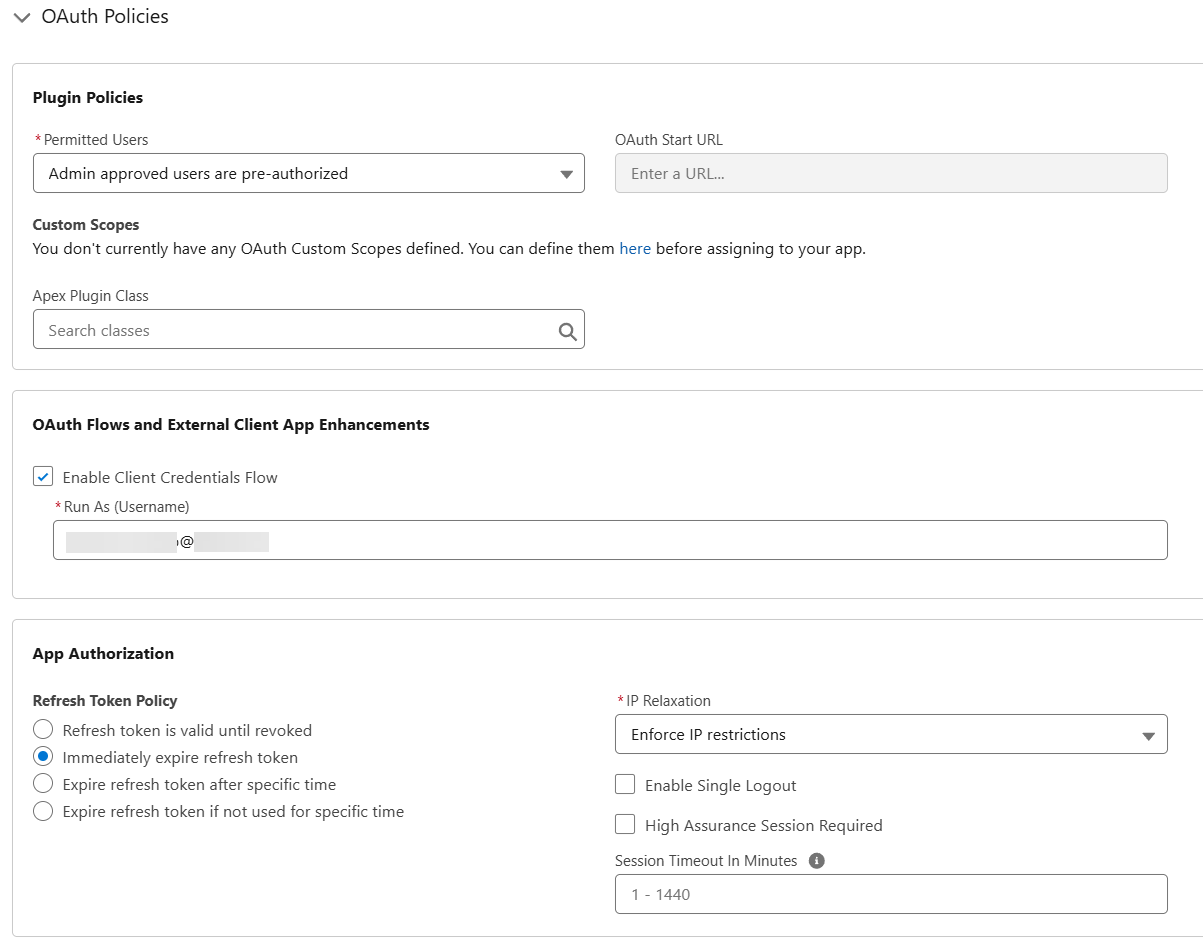
- Plugin Policies
Policies - App Policies
- Start Page: none
- Select Permission Sets: Assign the Permission Set created before ("IVR Access to Salesforce Voice Apex Classes")
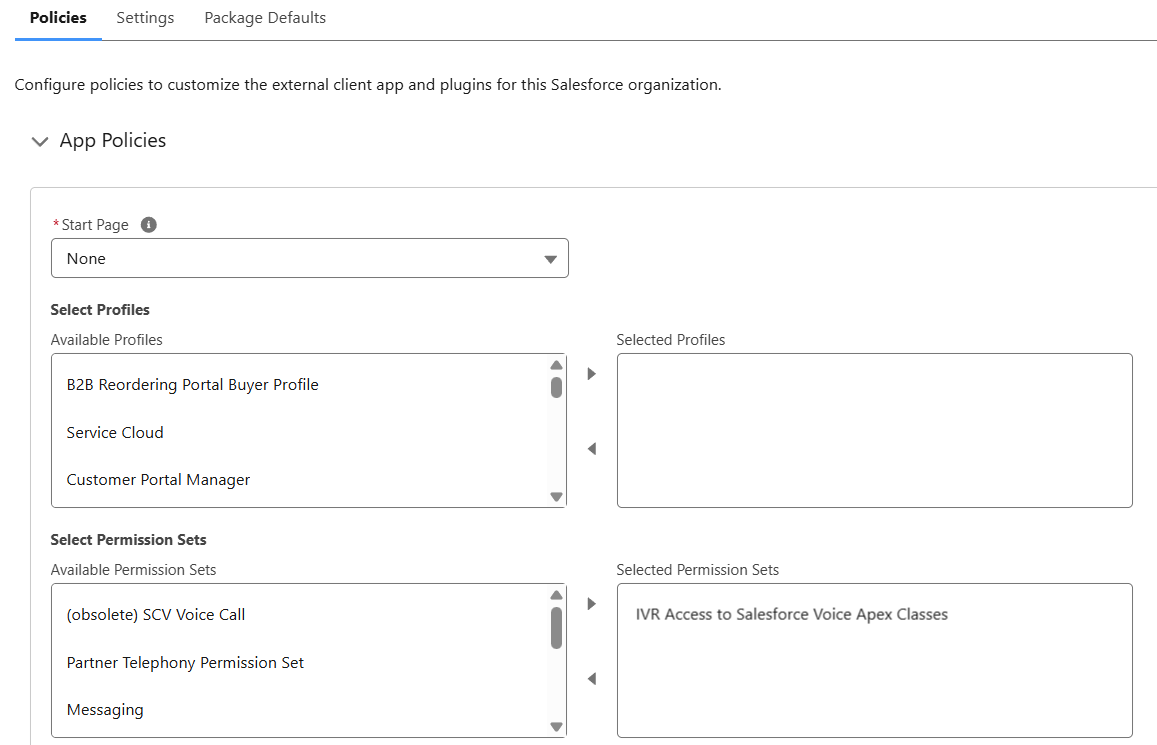
Click on
SavebuttonChange to Tab
Settings- Section OAuth Settings, click
Consumer Key and Secretbutton - wait for email and verify your identity

- A new browser tab opens a screen with the Consumer Details
- Click Copy and save the Consumer Key and the Consumer Secret. These values will be necessary for authenticating to the External Client App to receive the access_token required for all subsequent requests.
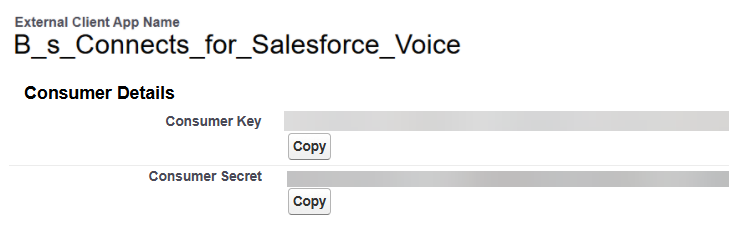
- Section OAuth Settings, click
Make sure you regularly rotate your Client IDs and Client Secrets to keep your integrations secure. You can follow the process described in Stage, Rotate, and Delete OAuth Credentials for an External Client App.
After generating new credentials, remember to update the Client ID and Client Secret in all Contact Center flows and IVR scripts where they are used. This will prevent any disruptions in your existing integrations.